
Set up 1Password for OutcomeCI workflows
Connect a 1Password service account, link a credential in the OutcomeCI Vault, and grant a workflow access to it.
Keep your workflow credentials in 1Password and link them from OutcomeCI. When a cloud run needs a linked credential, OutcomeCI resolves its reference using your workspace's 1Password service account.
This guide connects that service account and links a GitHub token as an example. The same process works for other credentials stored in 1Password.
What you need
- An OutcomeCI workspace and a workflow that uses a credential.
- A 1Password account with permission to create service accounts.
- OutcomeCI CLI 0.65.1 or later for the commands below, signed in with
oci auth login.
The dashboard steps require the 1Password integration. If 1Password is missing from the Vault's New item menu, ask your workspace administrator to check the deployed version.
Create a 1Password service account
Create a dedicated vault for workflow credentials, such as Automation,
and save your credential there. For this example, create an item named
GitHub with a field named token containing your GitHub token.
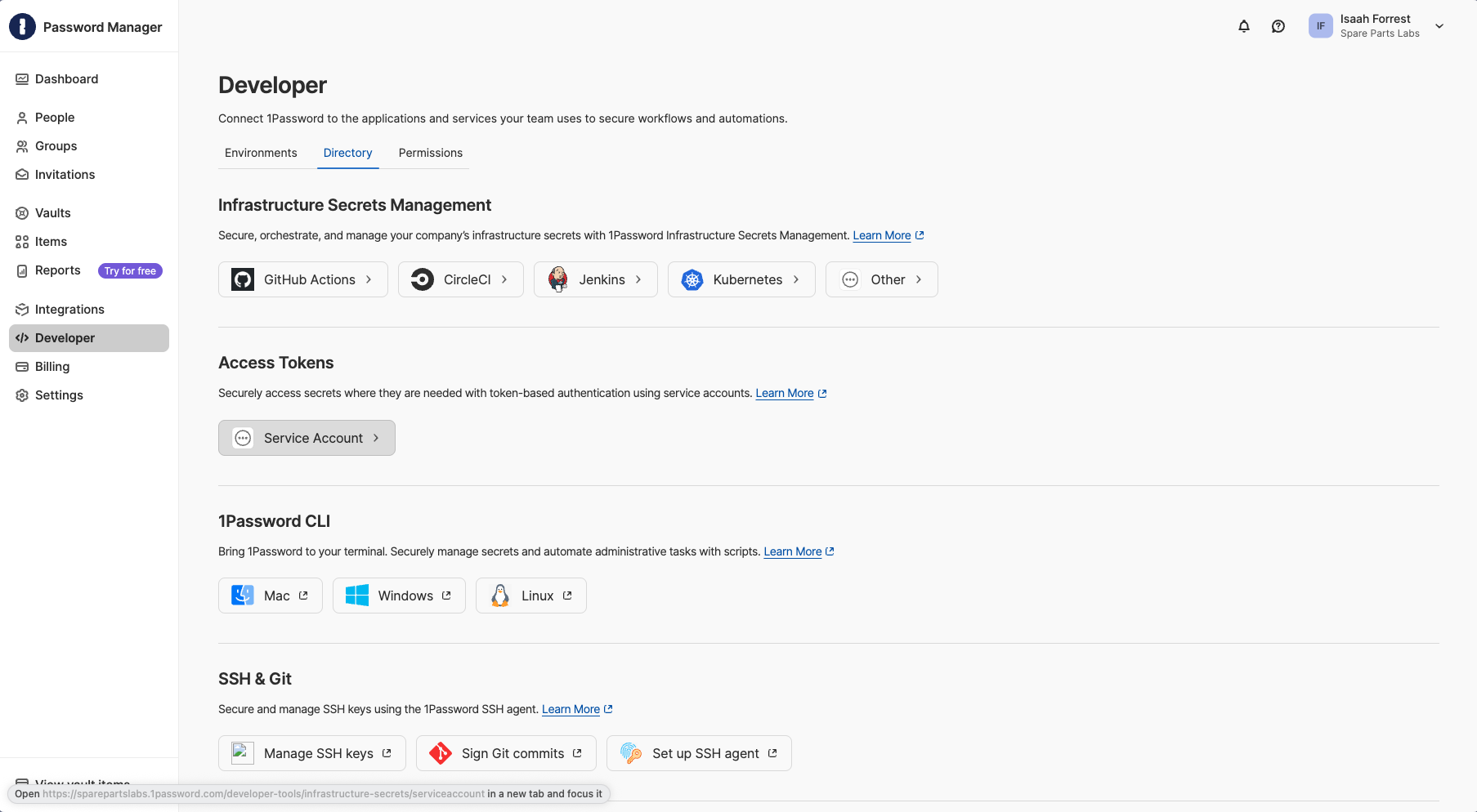
In 1Password, open Developer → Directory and choose Service Account under Access Tokens.
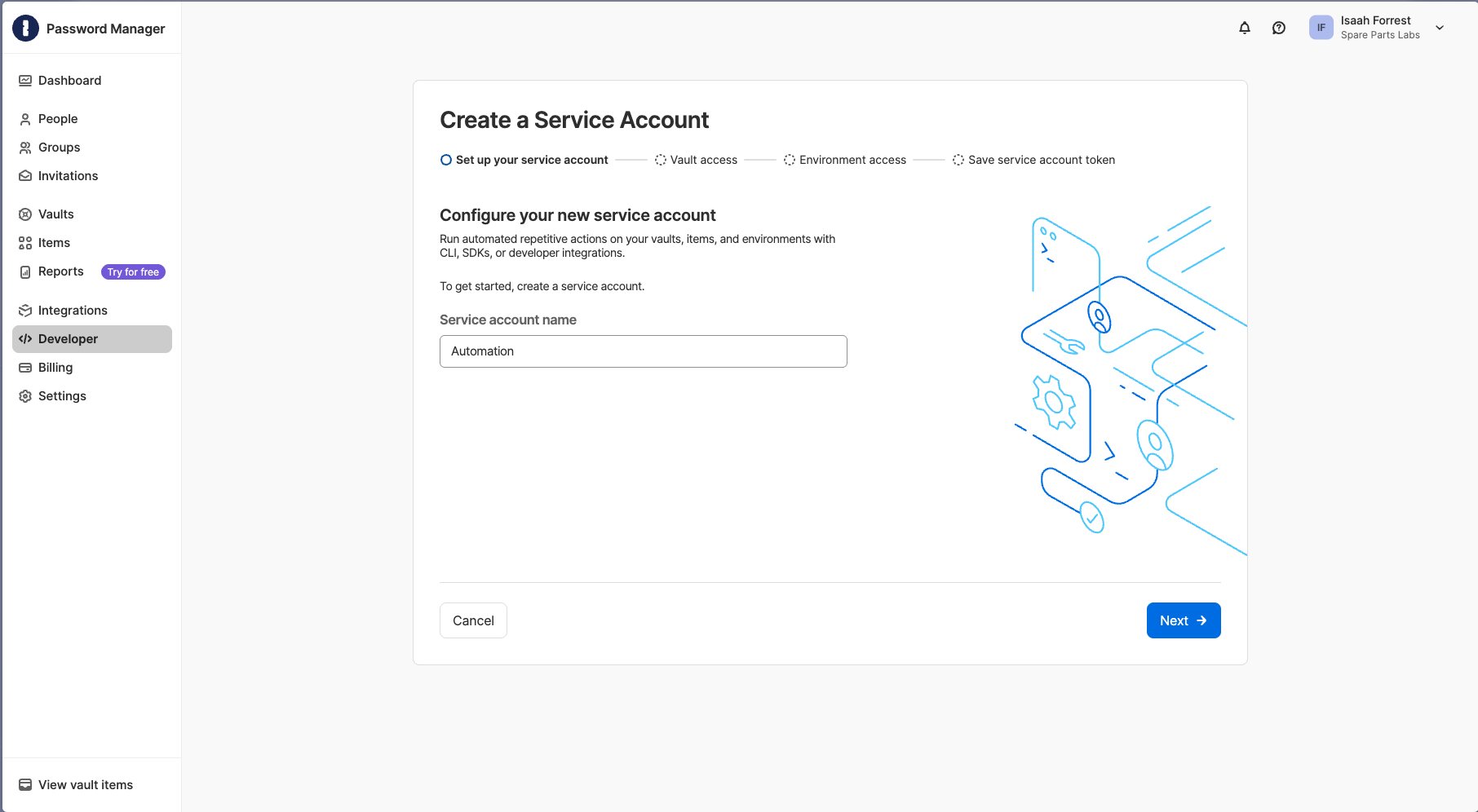
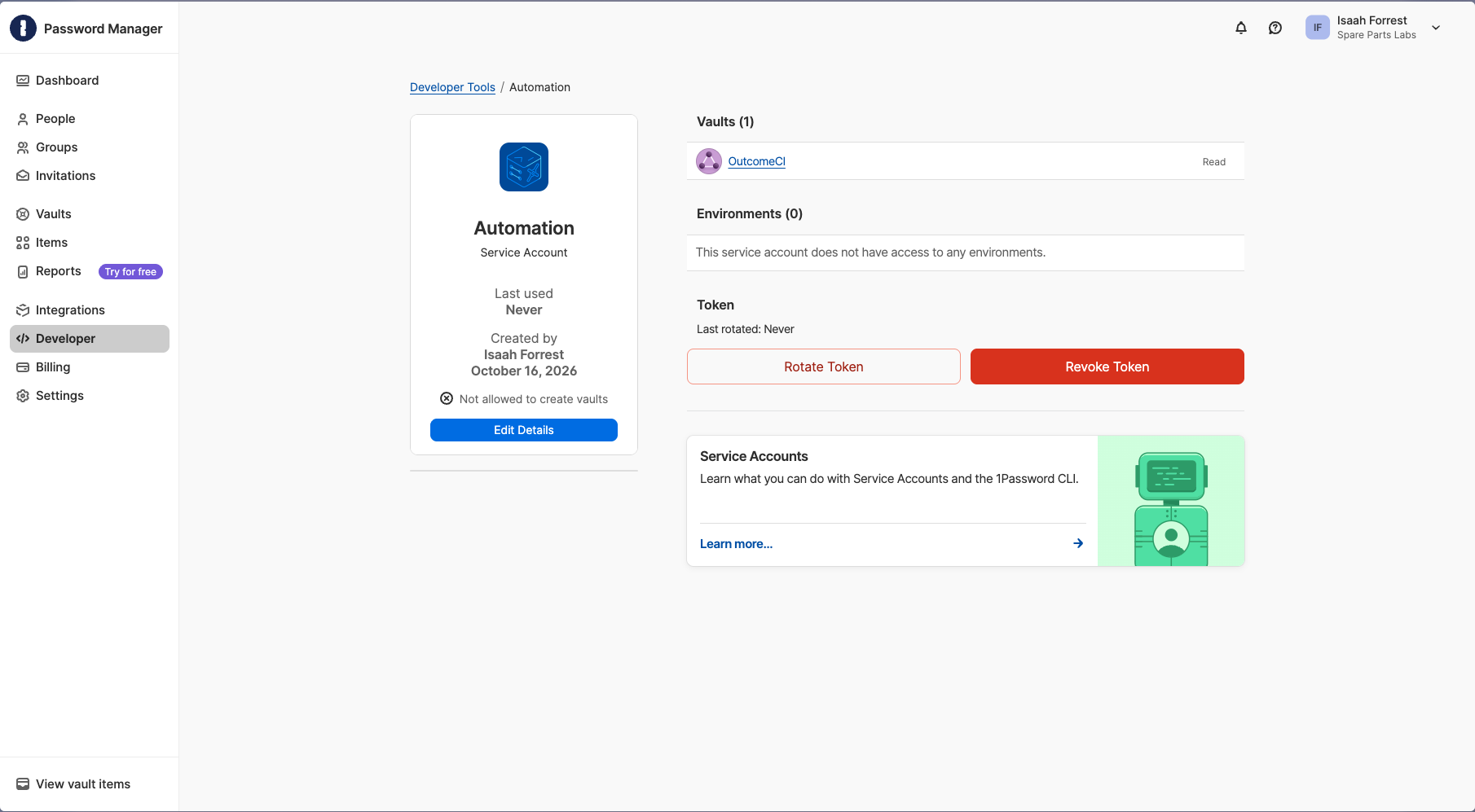
Name the service account for your OutcomeCI workspace. The screenshot uses
Automation as the account name; this is separate from the vault name.
Select the vault containing your workflow credentials and grant Read Items.
The screenshot selects a vault named OutcomeCI; select Automation if you
used the example vault above. Save the service account token when it appears; 1Password
shows it only once. Built-in Personal, Private, Employee, and default Shared
vaults cannot be used with service accounts. See
1Password's service account setup.
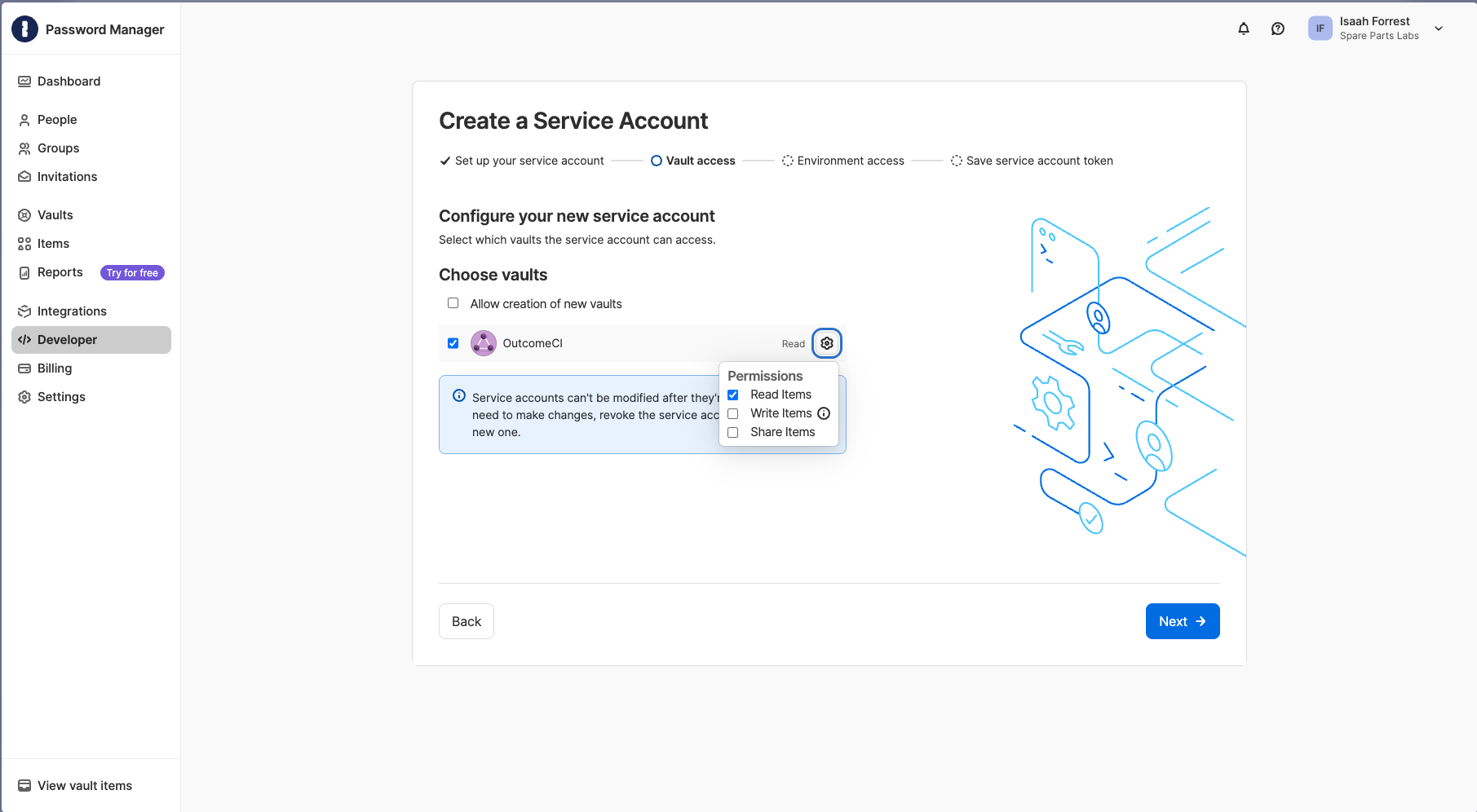
Read access is enough for this GitHub token. For credentials whose provider rotates a secret during a run, such as a rotating OAuth refresh token, also grant Write Items so OutcomeCI can save the replacement to 1Password. Service account permissions cannot be changed later; create a replacement account if the required access changes.
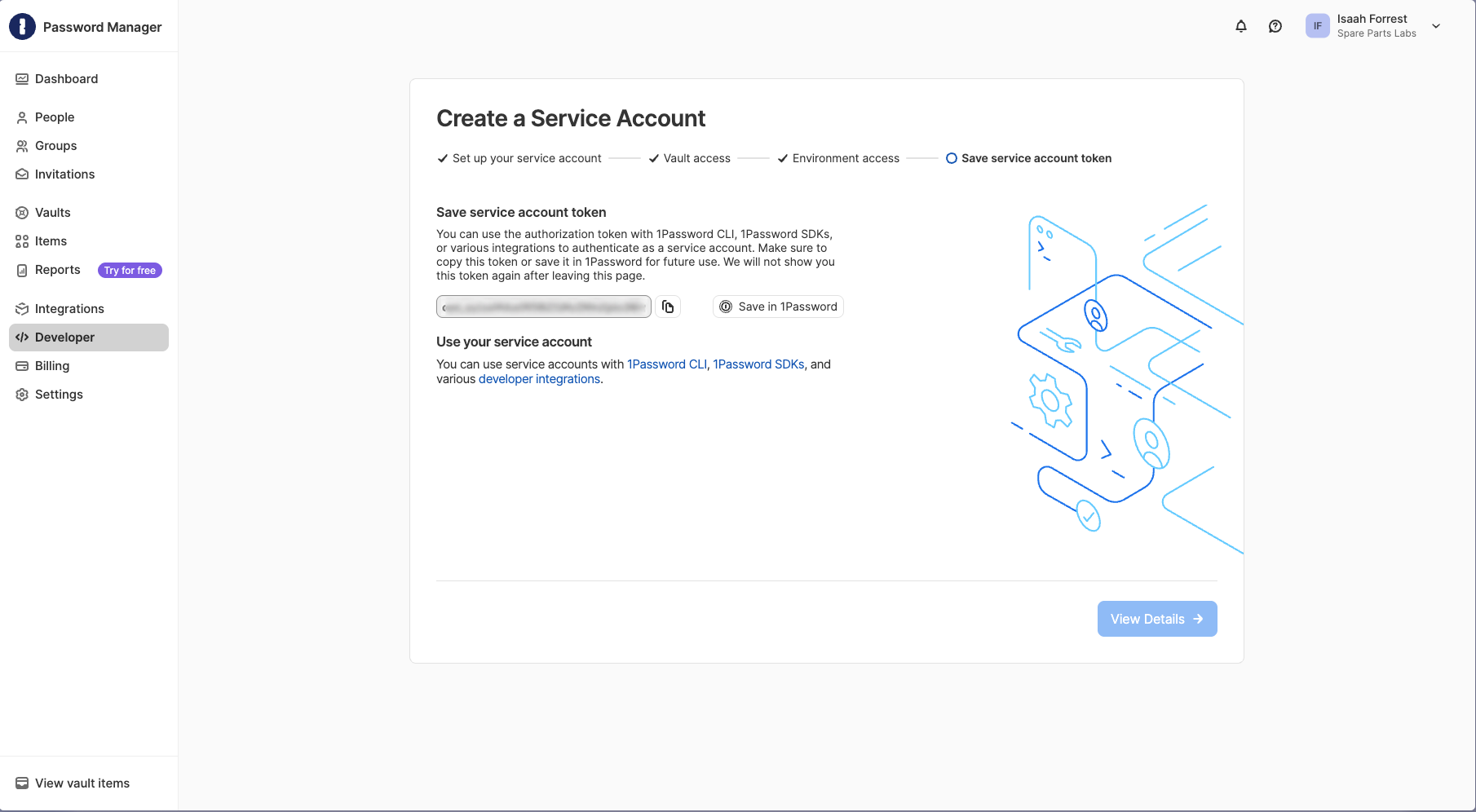
Copy the generated token or choose Save in 1Password before leaving the page. You will use this token to connect OutcomeCI in the next step.
After creating the account, review its details to confirm the intended vault has read access.
Connect 1Password to your workspace
In OutcomeCI, open Vault, choose New item, then 1Password. Paste your service account token into the connection form and save it.
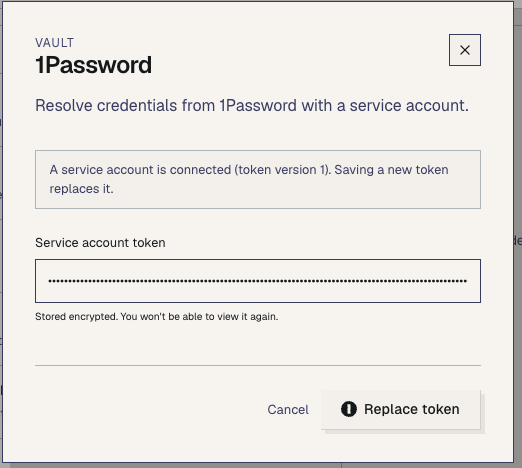
If a service account is already connected, the form shows Replace token, as pictured. Saving replaces the existing workspace connection token.
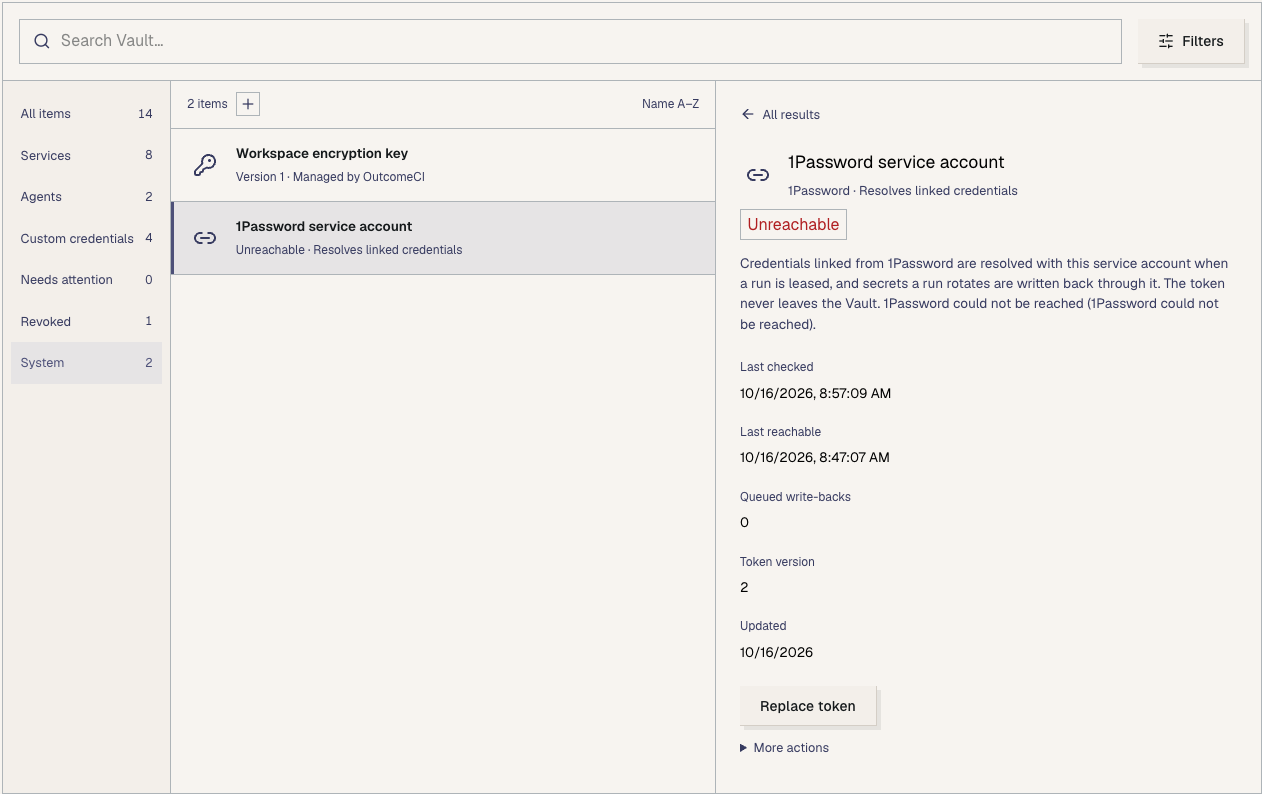
The connection appears in the Vault's System section. Check its status before linking a credential. Workflows receive the credentials you grant them; the service account token itself cannot be granted to a workflow.
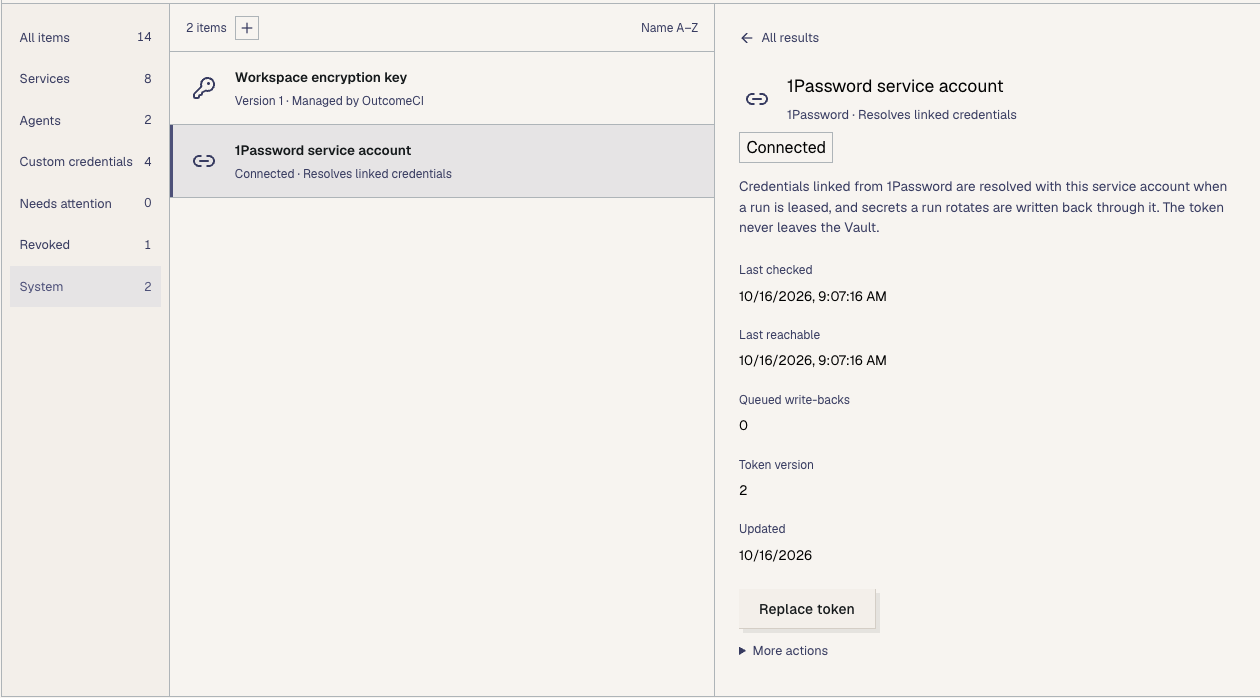
OutcomeCI checks the connection about every 10 minutes and also detects failures when resolving linked credentials. After replacing a token, allow for the next health check and refresh the Vault page to see the updated status.
If your service account token is already loaded securely into the
OP_SERVICE_ACCOUNT_TOKEN environment variable, the equivalent CLI command is:
printf %s "$OP_SERVICE_ACCOUNT_TOKEN" | oci vault connect 1password \
  --workspace-id WORKSPACE_ID --token-stdin
Replace WORKSPACE_ID with your workspace ID. Enter the token through the
dashboard or your secret manager; do not paste its value into a command,
workflow file, or agent conversation.
Link a credential and grant access
Open Add credential, choose Link from 1Password, and enter the reference to the secret field:
op://Automation/GitHub/tokenThe three parts identify the vault, item, and field. Use the names or IDs
for your actual item. Save the linked credential at github/token and grant
access to the workflow that will use it.
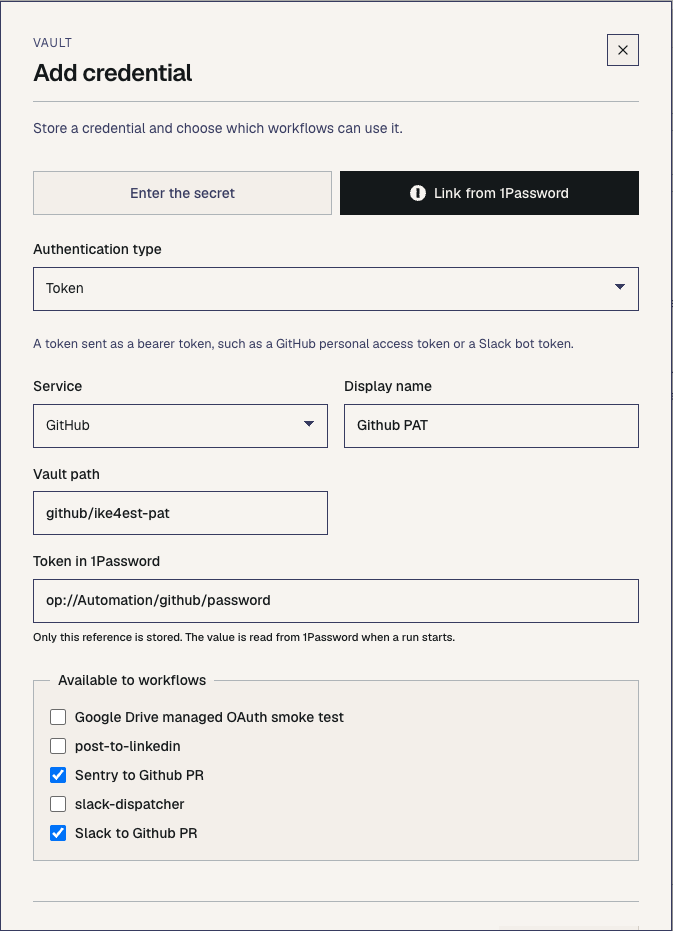
The screenshot uses a different example path and reference. Use the vault, item, and field that actually contain your token, and keep your workflow's Vault path consistent with the credential you save.
You can also create the link and grant access in one CLI command:
oci vault put github/token --workspace-id WORKSPACE_ID \
  --ref 'op://Automation/GitHub/token' --workflow-id WORKFLOW_ID
Replace both IDs with your workspace and workflow IDs. The workflow keeps using an OutcomeCI Vault path:
secrets:
  github: vault:github/token

apis:
  github: {uses: github, auth: secrets.github}
This is a fragment to add to a workflow, not a complete workflow file. Its
steps still need explicit can grants for the GitHub operations they use.
See the workflow reference.
Verify the connection
Run the workflow in the cloud with a read operation it already permits. Open the run and check that the operation succeeds without a credential resolution error. A connected service account alone does not verify that the linked field exists or that the workflow has access to the Vault entry.
To rotate the GitHub token later, update the linked field in 1Password. Subsequent credential resolution uses that field; you do not need to paste the replacement into OutcomeCI.
Troubleshooting
The service account is unreachable. This means OutcomeCI could not reach 1Password; it does not by itself establish that the token is invalid. Check Last checked and Last reachable in the System entry. The regular health check continues about every 10 minutes and updates the status when the connection recovers. A rejected token is reported separately.
The reference cannot be resolved. Check the vault, item, and field in
the op:// reference and confirm the service account can read that vault.
Your personal 1Password access does not determine the service account's access.
The workflow cannot access the credential. Confirm that its secrets
entry matches the saved Vault path and that the linked entry is granted to
this workflow in the same workspace.
A rotating credential cannot be saved back. The service account needs write access to the vault containing the referenced field. Replace the service account with one that has the required permissions.
Disconnect is refused. Move or remove linked credentials that still depend on the connection, and resolve pending write-backs before disconnecting. Disconnecting revokes the service account token.