
Set up a Google Drive workflow in OutcomeCI
Connect Google Drive and run a workflow that lists files in one folder with explicit read access.
Connect your Google account to OutcomeCI, then run a workflow that produces an inventory of one Drive folder. The example lists file names, types, and links, so you can verify the connection before adding document reads or writes.
What you need
- An OutcomeCI workspace with Google workflow authorization enabled.
- A Google account that can open the folder you want to inspect.
- An OutcomeCI CLI and runner version that includes the
google.driveconnector, withoci auth logincompleted. - An agent connected in your workspace's Vault, under Agents.
Signing in to OutcomeCI with Google does not authorize workflows to access Drive. You will grant that access separately below.
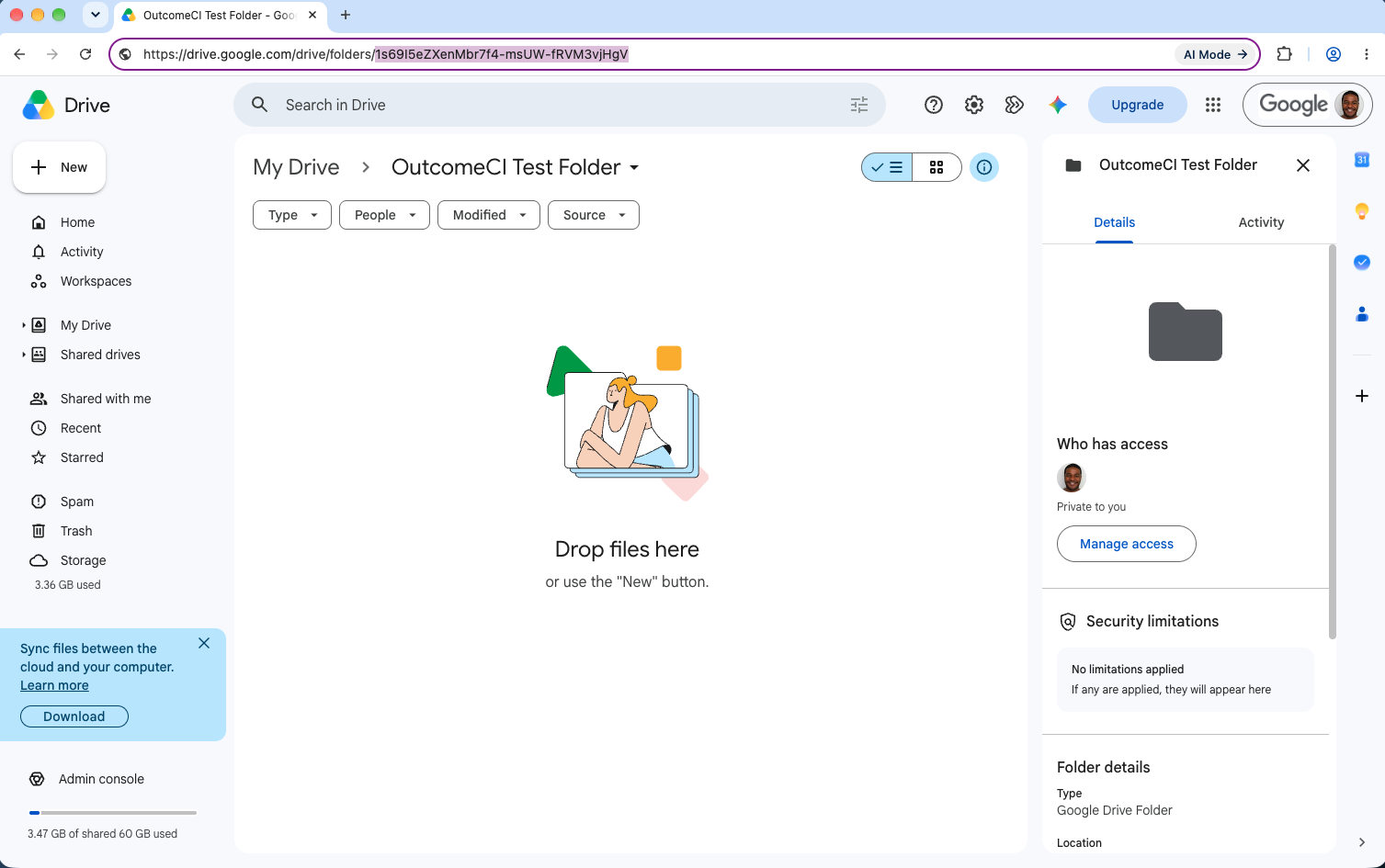
Choose a folder
Create a test folder in Google Drive. You can leave it empty to verify the
connection, or add a few sample files to inventory. Open the folder
and copy the ID after /folders/ in its URL:
https://drive.google.com/drive/folders/YOUR_FOLDER_IDUse only the ID in the workflow, without the rest of the URL or query parameters. The example lists direct children of this folder; it does not recursively open subfolders.
Write and sync the workflow
Save the following as outcome.yml, replacing YOUR_FOLDER_ID with the ID
you copied. The example uses Claude; change reasoning.default to the runner
and model connected in your workspace if needed.
apiVersion: outcomeci.workflow/v1
name: drive-folder-inventory
trigger: webhook

secrets:
  google: vault:google/test-acct

apis:
  drive: {uses: google.drive, auth: secrets.google}

reasoning:
  default: {runner: claude, model: claude-opus-5-5}

steps:
  - inventory:
      reason: >
        List the direct children of the granted Google Drive folder.
        Call drive.files.list with page_size 100 and an empty page_token
        for the first page. Follow next_page_token while present, up to
        five pages. Return a table of file names, MIME types, and web links.
        If more pages remain or incomplete_search is true, say the
        inventory is incomplete. Report an empty folder explicitly.
      can:
        - drive.files.list: {folder_id: YOUR_FOLDER_ID}
The can grant restricts this step to listing the specified folder. It
does not grant file downloads, exports, or changes.
Validate and create the workflow in your workspace:
oci validate
oci workflow sync outcome.yml --workspace-id WORKSPACE_ID --create
Replace WORKSPACE_ID with your workspace ID and keep the workflow ID
printed by sync. You will select this workflow when granting credential access.
Authorize Google Drive
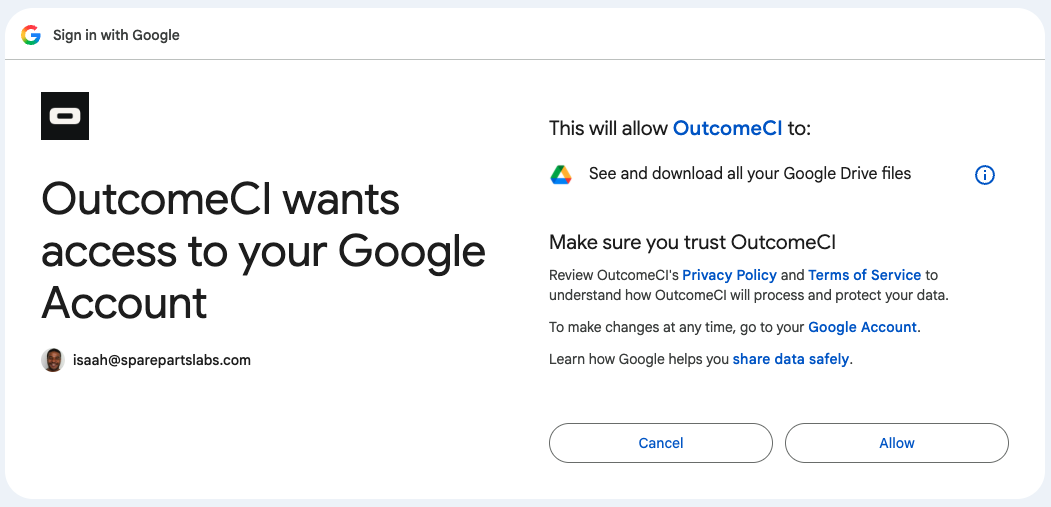
In your workspace's Vault, start a new Google connection. Choose Connect with Google and select Google Drive: Read Drive files under Workflow permissions. Complete Google's sign-in and consent flow with the account that can access your test folder.
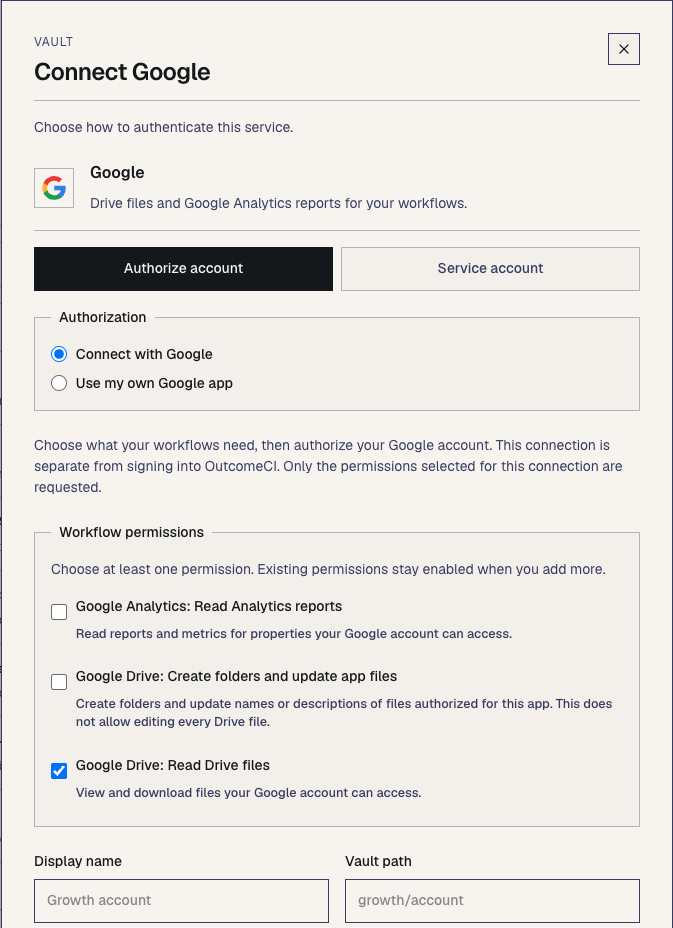
This requests Google's drive.readonly scope, which can read files available
to the Google account. The folder restriction in the workflow is an additional
OutcomeCI control; Google's consent itself is not limited to that folder.
See Google's Drive scope reference.
After consent, OutcomeCI confirms that your account is connected. Choose Return to Vault to review the connection.
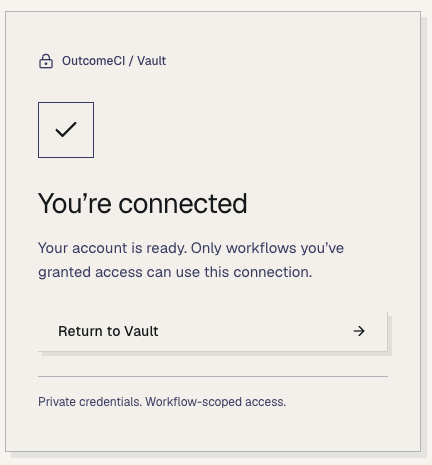
Save the connection at google/test-acct and grant it to the workflow
you just synced using its Access tab. If you choose a different Vault path, update the workflow's
secrets.google value to match and sync the file again.
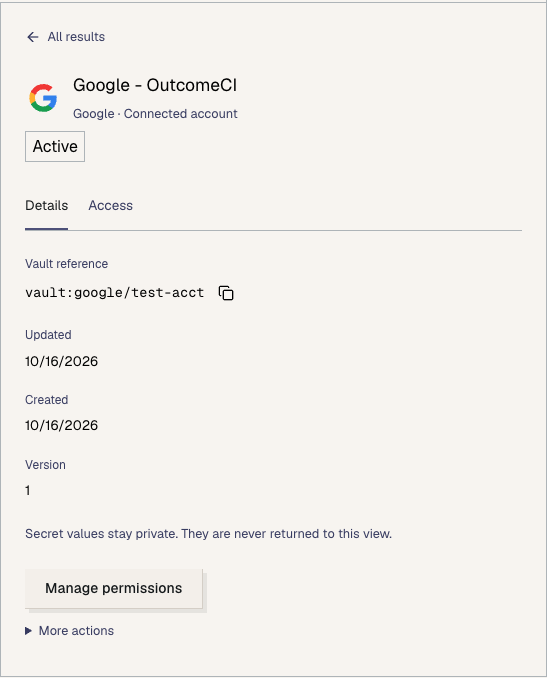
If Connect with Google is unavailable, ask your administrator to enable Google workflow authorization. Use my own Google app is a separate setup that requires your own OAuth app configuration.
Run and check the result
Open the synced workflow in the OutcomeCI dashboard. Complete any required policy review, then open Settings → Webhooks, choose Enable webhook, and copy the webhook URL. Send a request to start a cloud run:
curl --request POST 'YOUR_WEBHOOK_URL' \
  --header 'Content-Type: application/json' \
  --data '{}'
Keep the webhook URL private: it authorizes requests to this workflow.
The response includes the run's invocation_id. Open that run in the dashboard
and wait for Completed, then inspect the inventory step's output under
Artifacts. Its table should match the files directly inside your folder;
for an empty folder, the output should explicitly say no files were found.
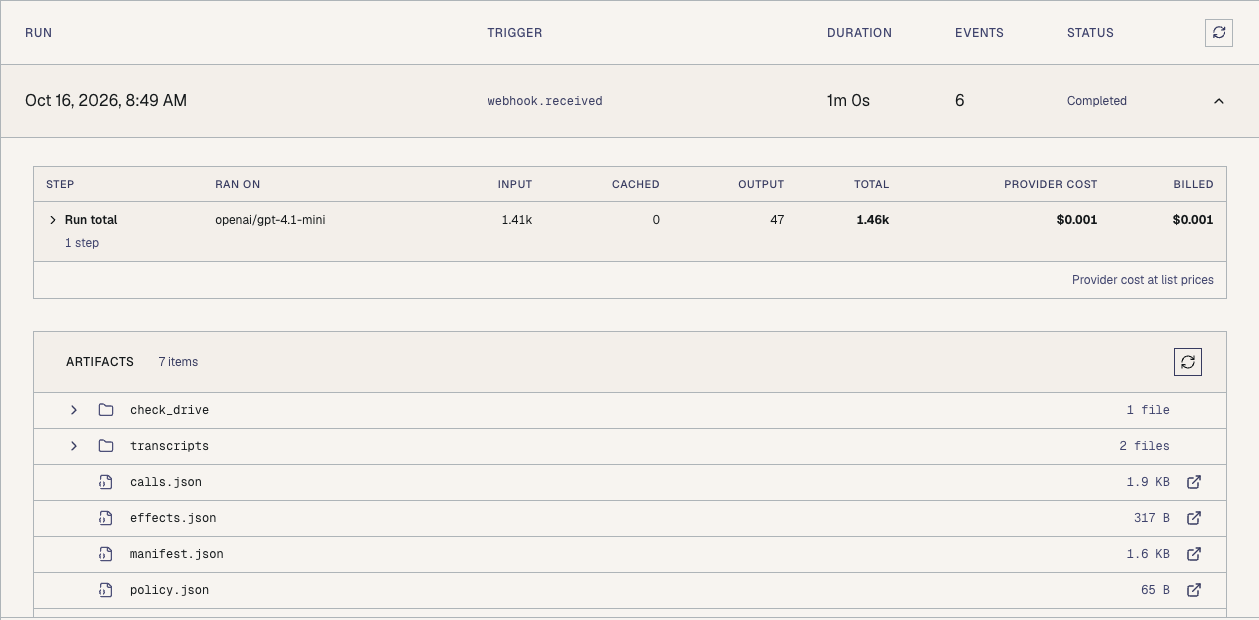
The screenshot shows a completed webhook run and its artifacts. Your runner, model, step name, and usage may differ.
Check that the run called drive.files.list and that the output clearly
states whether the inventory is complete. The example stops after five pages
so a large folder cannot silently turn into an unbounded scan.
Add document reads
Once listing works, you can add these grants to the same step's can list
and update its instructions to read the files it finds:
        - drive.files.download: {folder_id: YOUR_FOLDER_ID}
        - drive.files.export: {folder_id: YOUR_FOLDER_ID}
Use files.download for binary files and files.export for Google Workspace
documents. Export calls need a compatible mime_type, such as text/plain
for a Google Doc. The connector checks direct folder membership before
fetching content. Downloads are limited to 20 MiB and exports to 10 MiB.
Sync and review the changed workflow before running it. To add writes later,
you also need the appropriate operation grants and Google's drive.file
permission. That permission applies to app-authorized files; it does not
permit editing every file in the account's Drive.
Troubleshooting
The CLI does not recognize google.drive. Update to a CLI release that
includes the connector and ensure the cloud runner supports it too.
Google connects but the run cannot lease a credential. Check that the
Vault path matches google/test-acct and the connection is granted to this
workflow in the same workspace.
Google returns a permission error. Confirm that the connected account can open the folder and that you granted Read Drive files. A Google sign-in used only to log in to OutcomeCI does not supply Drive permission. Your Google Workspace administrator may also need to allow the app.
The list is empty or missing files. Check the folder ID and the connected Google account. Listing covers direct children only, excludes trashed files, and needs pagination for larger folders.
A download or export fails. Use export for Google Workspace documents, choose a compatible format, and check the size limits. The file must be a direct child of the folder named in the grant.