Run OutcomeCI workflows with Claude Code
Use your Claude subscription to run OutcomeCI workflows with Claude Code. Connect it from the OutcomeCI Vault in a few clicks.
An OutcomeCI workflow reasons with the agent its reasoning names. To run
workflows with Claude Code in the cloud, OutcomeCI signs in to Claude Code with
your Claude account, so its runners use your Claude subscription rather than an
API key.
To have Claude Code build workflows with you from your terminal instead, see How to set up an MCP server in Claude Code.
What you need
- A Claude account on a plan that includes Claude Code.
- An OutcomeCI account with access to a workspace.
- A workflow that reasons with Claude Code:
reasoning:
  default: {runner: claude, model: claude-opus-5-5}
Connect Claude Code to OutcomeCI
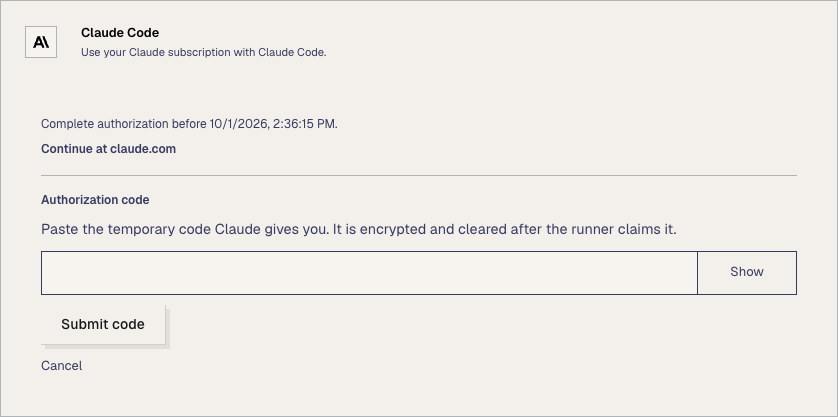
In the OutcomeCI dashboard, open Vault and scroll to Agents. On the Claude Code card, choose Connect. After a moment, OutcomeCI shows a link to Claude and a field for the code Claude gives you.
-
Choose Continue at claude.com, and sign in to Claude if prompted.
-
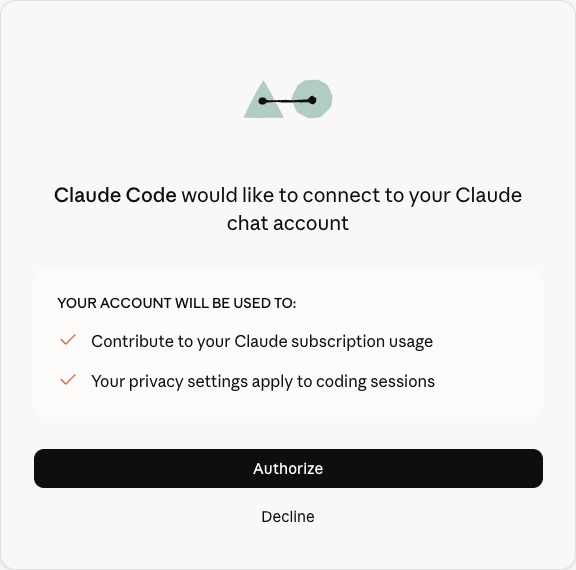
Claude asks to connect Claude Code to your account. Choose Authorize.
Claude asking to connect Claude Code to your account -
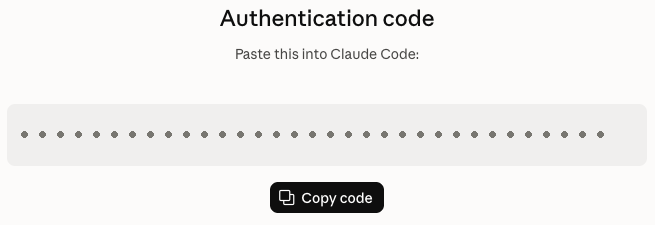
Claude shows an authentication code. Choose Copy code.
Claude's authentication code page with the Copy code button -
Back in OutcomeCI, paste it into Authorization code and choose Submit code.
The code is encrypted, and cleared once the runner has used it. Treat it like a password until then: it signs in to your Claude account.
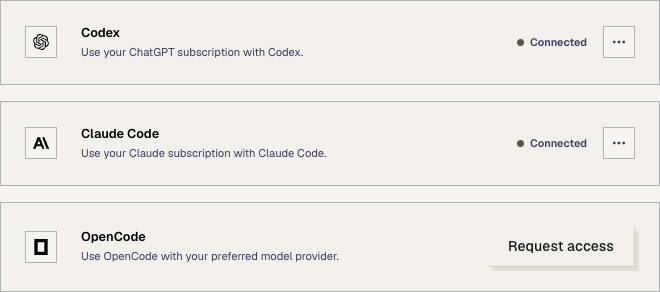
When the runner finishes signing in, the Claude Code card shows Connected.
Workflows whose reasoning names the
claude runner can now run in the cloud.
Troubleshooting
The authorization code expired. Choose Cancel on the Claude Code card, then Connect again and paste the new code straight away.
Next steps
- Write a workflow covers every field, including reasoning and its fallbacks.
- Run OutcomeCI workflows with Codex connects a ChatGPT subscription the same way.
- How to set up an MCP server in Claude Code lets Claude Code build workflows with you.