Run OutcomeCI workflows with Codex
Use your ChatGPT subscription to run OutcomeCI workflows with Codex. Turn on device code sign-in, then connect Codex from the OutcomeCI Vault.
An OutcomeCI workflow reasons with the agent its reasoning names. To run
workflows with Codex in the cloud, OutcomeCI signs in to Codex with your
ChatGPT account, so its runners use your ChatGPT subscription rather than an
API key.
That sign-in uses a one-time device code, which ChatGPT only accepts once you allow it. This guide turns that on, then connects Codex from the OutcomeCI Vault.
To have Codex build workflows with you from your terminal instead, see How to set up an MCP server in Codex.
What you need
- A ChatGPT account on a plan that includes Codex.
- An OutcomeCI account with access to a workspace.
- A workflow that reasons with Codex:
reasoning:
  default: {runner: codex, model: gpt-5.5}
Turn on device code sign-in
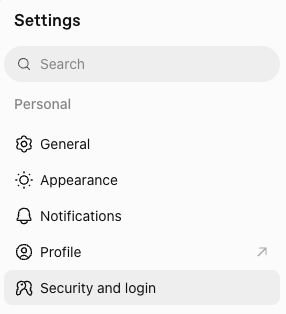
Open chatgpt.com, go to Settings, then Security and login.
Under App security, switch on Enable device code sign-in for Codex, Excel, PowerPoint, and Word.
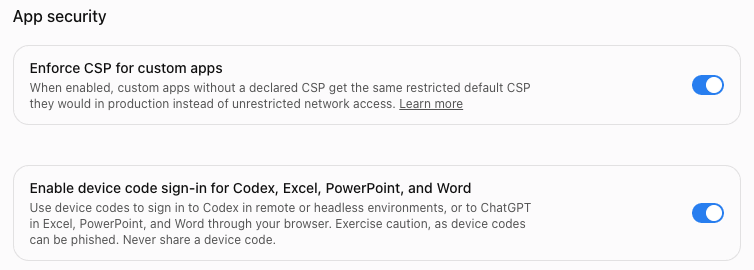
The same setting lets you sign in to the Codex CLI on a remote or headless
machine with codex login --device-auth.
Connect Codex to OutcomeCI
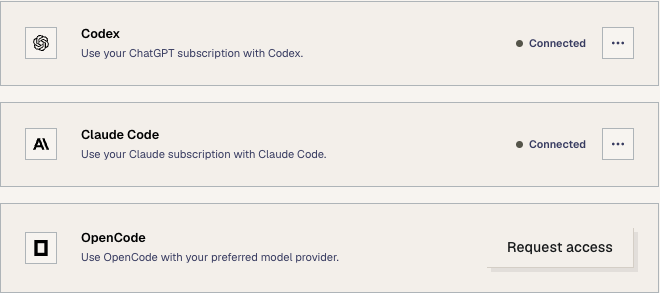
In the OutcomeCI dashboard, open Vault and scroll to Agents. On the Codex card, choose Connect. After a moment, OutcomeCI shows a one-time code and the time it expires.
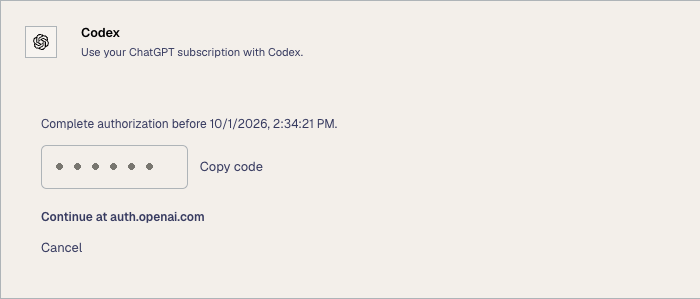
- Choose Copy code.
- Choose Continue at auth.openai.com, and sign in with your ChatGPT account if prompted.
- Enter the 9-character code and choose Continue.
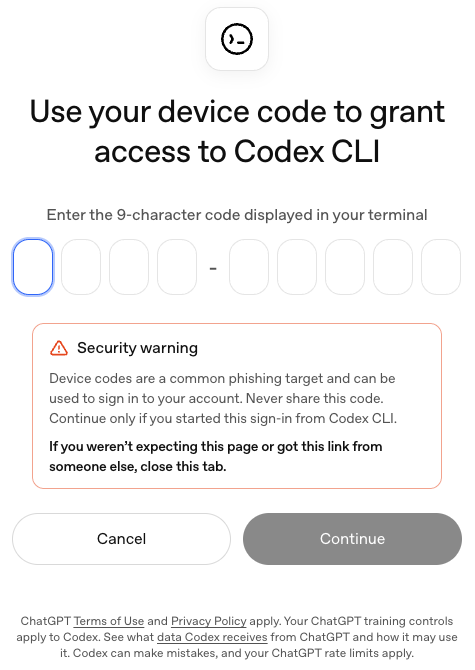
OpenAI's page talks about the Codex CLI and your terminal because OutcomeCI's runner signs in with the Codex CLI on your behalf. The code came from your own OutcomeCI dashboard, so it is safe to continue.
Back in OutcomeCI, the Codex card shows Connected. Workflows whose
reasoning names the codex runner can now
run in the cloud.
Troubleshooting
OpenAI does not accept the code. Device code sign-in may be off in ChatGPT. Turn it on, then choose Cancel on the Codex card and Connect again for a fresh code.
The code expired. Each code expires at the time shown on the card. Choose Cancel, then Connect again.
Next steps
- Write a workflow covers every field, including reasoning and its fallbacks.
- Run OutcomeCI workflows with Claude Code connects a Claude subscription the same way.
- How to set up an MCP server in Codex lets Codex build workflows with you.